Get started
About five minutes from download to your first edit.
What you need
- A Mac with macOS 13.5 or later (Apple silicon or Intel), or a PC with Windows 10 or 11, 64-bit.
- Illustrator, Photoshop or After Effects.
- An AI you already pay for, or a key. A Claude Pro or Max plan, a ChatGPT Plus or Pro plan, or an API key from Anthropic, Google Gemini or OpenRouter.
01Install
Mac
- Open Komposit-mac.dmg and drag Komposit into Applications.
- Open Komposit from Applications. macOS says it can’t check it for malicious software, because this preview isn’t signed with an Apple certificate yet. Click Done.
- Open System Settings > Privacy & Security, scroll down to “Komposit was blocked to protect your Mac”, click Open Anyway and confirm. You only do this once.
Komposit’s icon, a small square, appears in the menu bar, and Komposit opens in your browser.
Windows early build
- Run Komposit-Setup-win.exe. Windows SmartScreen says “Windows protected your PC”, because the installer isn’t signed yet. Click More info, then Run anyway.
- Click through the installer. It installs for your user only, with no administrator password.
Komposit’s icon appears in the system tray, next to the clock (it may be behind the ^ arrow), and Komposit opens in your browser. The Windows version is new: it installs and runs, but it has had little time with real Adobe apps on Windows.
02Choose your AI
Komposit asks the first time it opens. Pick one; you can change it later in Settings.
Claude subscription
Your Claude Pro or Max plan, through Claude Code. If Claude Code isn’t installed, the page shows a one-line install command (Terminal on a Mac, PowerShell on Windows). Run claude once to sign in, then click Check again.
ChatGPT subscription
Your ChatGPT Plus or Pro plan, through Codex. Install it with npm install -g @openai/codex (it needs Node.js), run codex login and sign in with your ChatGPT account, then click Check again.
An API key
From Anthropic, Google Gemini (free to create at aistudio.google.com, under Get API key) or OpenRouter. Paste it; Komposit checks it before saving.
On the app’s own page a key is saved on your computer. On the web page it stays in that browser, and goes only to the AI service you chose.
03Connect your Adobe apps
Open the apps you use, then:
- Mac: click Allow for each app. macOS asks “Komposit wants access to control Adobe Photoshop”: click OK. Allow Design folders too, so Komposit can list your recent files.
- Windows: there are no prompts. Click Test connection for each app.
- After Effects needs one setting turned on: Allow Scripts to Write Files and Access Network. On a Mac it’s under After Effects > Settings > Scripting & Expressions; on Windows, Edit > Preferences > Scripting & Expressions.
04Your first request
Open a document in the Adobe app. In Komposit, pick the app (Ai, Ps or Ae), say what you want in plain words, and press Enter. You see each step as it works, then the result and a short note on what it did.
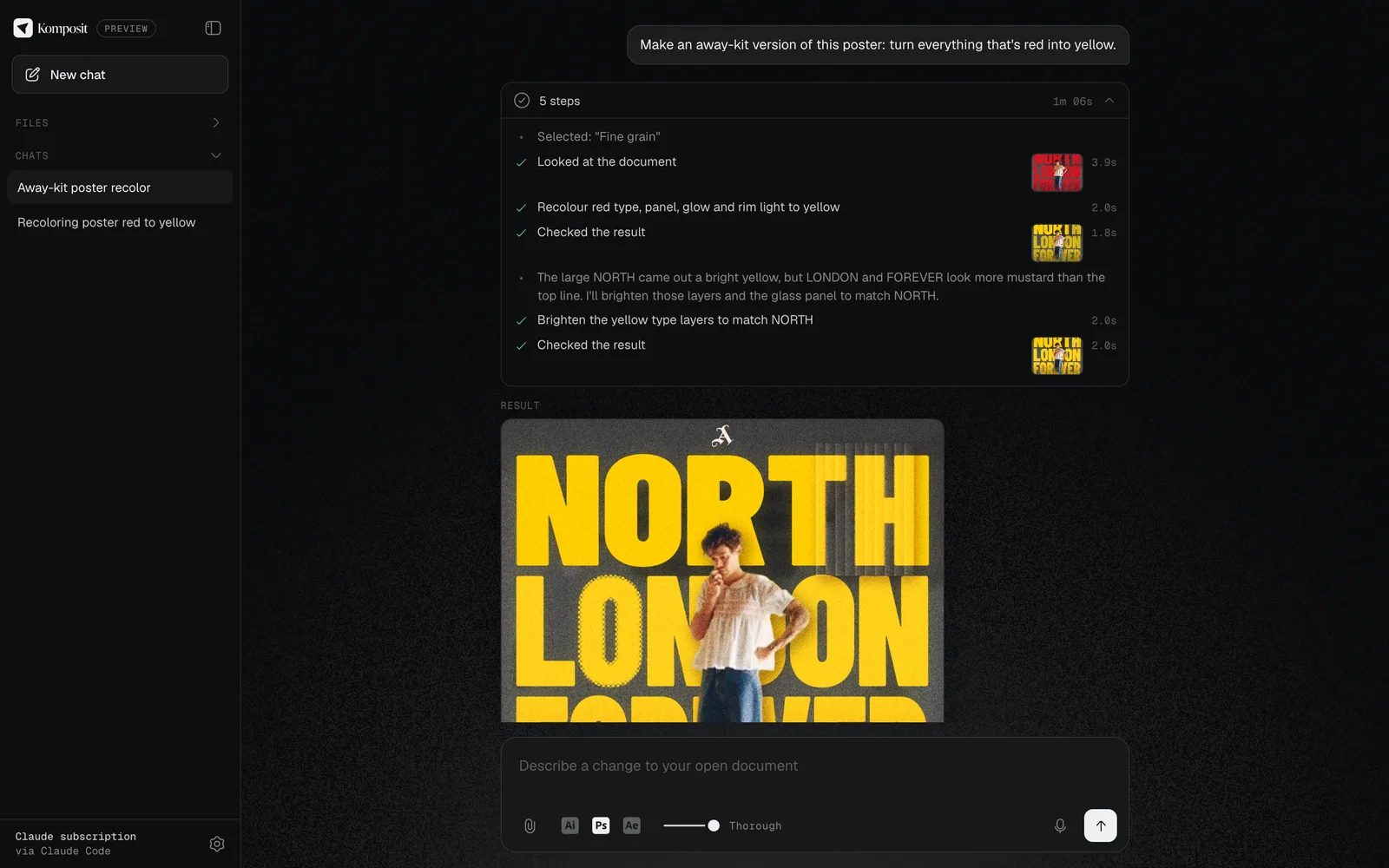
- Point by selecting. Select something in the app and say “make this bigger” or “match these”.
- Show it a reference. Attach, paste or drop an image, a PDF, a brief: any file, up to six per message.
- Fast, Balanced, Thorough. The slider sets how long the AI thinks before it acts. Balanced is the default; Thorough is for hard design decisions, and takes longer.
- Not happy? Undo in the app (Cmd-Z on a Mac, Ctrl-Z on Windows), or ask Komposit to change it. It saves your file only when you ask.
- Files. Ask for a PNG, a print-ready PDF (Illustrator) or an MP4 (After Effects). They go to Komposit Exports in your home folder and never replace a file.
The web page and the app’s own page
On a Mac with Chrome, Edge, Arc, Brave or Firefox, Komposit opens as a web page, app.komposit.werq.dev, connected to the app on your computer. Chrome, Edge, Arc and Brave ask whether the page may connect to apps on this device: click Allow. The web page asks you to sign in with Google before your first request (what that keeps).
Rather not? The app’s own page, http://127.0.0.1:4321, is the same Komposit with no account. It’s what opens in Safari and on Windows, and Settings on the web page has a button for it. (If that port is taken the app uses the next free one, up to 4330; the menu-bar or tray menu shows which.)
If something’s off
What Komposit says when something is in the way, and what to do. Open the part you’re in.
Connecting the page to the app
- “Allow Komposit to connect” (Chrome, Edge, Arc, Brave)
- Your browser asks whether this page may connect to apps on this device: choose Allow. If you take more than two minutes the page says “Komposit isn’t running”; reload and answer the prompt.
- “Your browser is blocking the connection”
- Click the site icon at the left of the address bar, open Site settings, set Local network access (or Apps on this device) to Allow, then reload. Or click “Use Komposit’s own page instead”.
- “Connect this browser”
- A new browser, or its site data was cleared. Click Connect, once.
- “Komposit isn’t running”
- Open Komposit from Applications (Mac) or the Start menu (Windows). The page checks every few seconds and connects by itself.
- Safari shows “Open Komposit”
- Safari doesn’t let websites talk to apps on your Mac, so Komposit shows the page itself. Click Open Komposit.
- “Komposit stopped”, or “Lost the connection to Komposit”
- The app isn’t answering. Click its menu-bar or tray icon and choose Restart.
Signing in with Google (the web page)
- A sign-in box on your first request
- You can close it; the next request brings it back. Your text, the chosen app and the open chat are kept while you sign in. Attachments aren’t: attach them again.
- “Signing in was cancelled”, “took too long”, “didn’t match this page”, or “This sign-in link has expired or was already used”
- Go back to Komposit and sign in again. A sign-in link lasts ten minutes, and the browser’s Back button can reuse an old one.
- “This sign-in is no longer valid. Sign in again.”
- A sign-in lasts 30 days.
- You’d rather not have an account
- Use the app’s own page: the sign-in box links to it, and nothing there needs one.
Your AI
- “Claude Code isn’t installed”, or “installed but not signed in”
- Paste the install command the page shows into Terminal (Mac) or PowerShell (Windows), run claude once and sign in, then click Check again.
- “Claude Code’s install looks broken”
- Usually an update that didn’t finish. Reinstall it with the command the page shows.
- “Your Claude plan is at …% of its current usage window”
- A heads-up. At the limit, wait for the window to reset, or pick another AI in Settings.
- “Codex is signed in with an API key, not a ChatGPT plan”
- Run codex login and choose Sign in with ChatGPT. Komposit uses your plan, never a key, for this choice.
- “Your ChatGPT plan has reached its Codex usage limit”
- It says when it resets. Try again then, or pick another AI in Settings.
- “That key was not accepted”, or “has no access to the API”
- Check the key with the service that issued it, and paste it again.
- Gemini: “This key can’t use … right now”, or “has used up today’s quota”
- Pro-class models need billing turned on in Google AI Studio. Leave the model empty to use the best one the key can, or save the key again in Settings to switch to a model with quota left.
- “Rate limited”, or “The model is overloaded right now”
- Wait a moment and try again.
- OpenRouter or another service: “Model request failed”
- Pick a model that can see images, in Settings. Komposit looks at renders of your document.
- You switched AI in the middle of a chat
- The new one may not remember the earlier part of that chat. Start a new chat for a clean slate.
Your Adobe apps
- “Not allowed to control” an app, or “Turned off in System Settings” (Mac)
- System Settings > Privacy & Security > Automation > Komposit: turn the app on.
- Design folders: “Blocked”
- Click Open System Settings and allow Desktop, Documents and Downloads, where your designs live.
- “Open it to connect”
- Click Open. Komposit waits for the app to finish starting.
- Windows: an app “isn’t installed on this PC”
- Install it from Creative Cloud, open it once, then try again.
- Windows: “Komposit’s Windows helper is missing”
- Reinstall Komposit.
While it works
- Illustrator or Photoshop “seems to be showing a dialog. Close it and this carries on.”
- Switch to the app and close the dialog. Komposit carries on by itself.
- After Effects “is showing a dialog”, “isn’t open”, or “is still starting”
- Fix it in After Effects, then send the request again. After Effects doesn’t carry on by itself.
- After Effects “ran the script but couldn’t hand the result back”
- Turn on Allow Scripts to Write Files and Access Network (step 3). After a crash, choose Continue: Safe Mode turns scripts off.
- After Effects: “No comp is active”
- Click the comp’s timeline, then ask again.
- “That edit failed, adjusting”
- Normal. It tries another way.
- An app “didn’t answer in time”
- If it’s showing a dialog, close it. The step may still finish inside the app, so look before you retry.
- “I stopped at the step limit for one message.”
- Say “continue” to keep going.
- You pressed Stop, or started a new chat
- Both stop a running request. Edits already made stay in the document; undo them in the app.
- The web page with an API key: you closed or reloaded the tab
- The request ends, because the page was running it. Send it again to carry on.
Files, exports and saving
- “Up to 6 attachments per message”, or a file “is over 100 MB”
- Those are the limits. Any file type works.
- It needs a font you don’t have
- Komposit can’t install fonts. Double-click the font file to install it, then ask again.
- Where exports go
- Komposit Exports in your home folder, or another folder inside your home folder if you ask. Nothing is overwritten: a second file gets “name 2”.
- A file “has never been saved, so there is no original to overwrite”
- Ask it to save a copy instead. In After Effects, use File > Save As yourself.
The app itself
- The menu-bar or tray icon’s menu
- Open Komposit, the port it runs on, Restart, Show Log, Show Data Folder, Open at Login, Quit. If it says “Stopped”, choose Restart.
- Starting with your computer
- On Windows it starts when you sign in unless you untick that in the installer. On a Mac, turn on Open at Login in the menu.
- Updates
- Nothing announces a new version yet. Download again from the same links: your settings and chats stay. The web page updates itself.
Anything else: click the menu-bar or tray icon, choose Show Log, and attach server.log (and server.previous.log, the run before) to an issue on GitHub.